Server Management
2 articles in this category
-
Guides: Subscribers Workshop: Install/Upgrade/Uninstall Docker If you have tried installing docker to your system but failed to follow the docker.com docs then please do the following. Now before starting, a rule of thumb, make sure your system is up to date. Basic Set-up for installing docker. Step 1. Update the host. $ apt update Step 2. Upgrade the host. $ apt upgrade -y Step 3. Install curl. $ apt install curlStep 3. Install Docker. $ curl -sSL https://get.docker.com | shStep 5 Check if
-
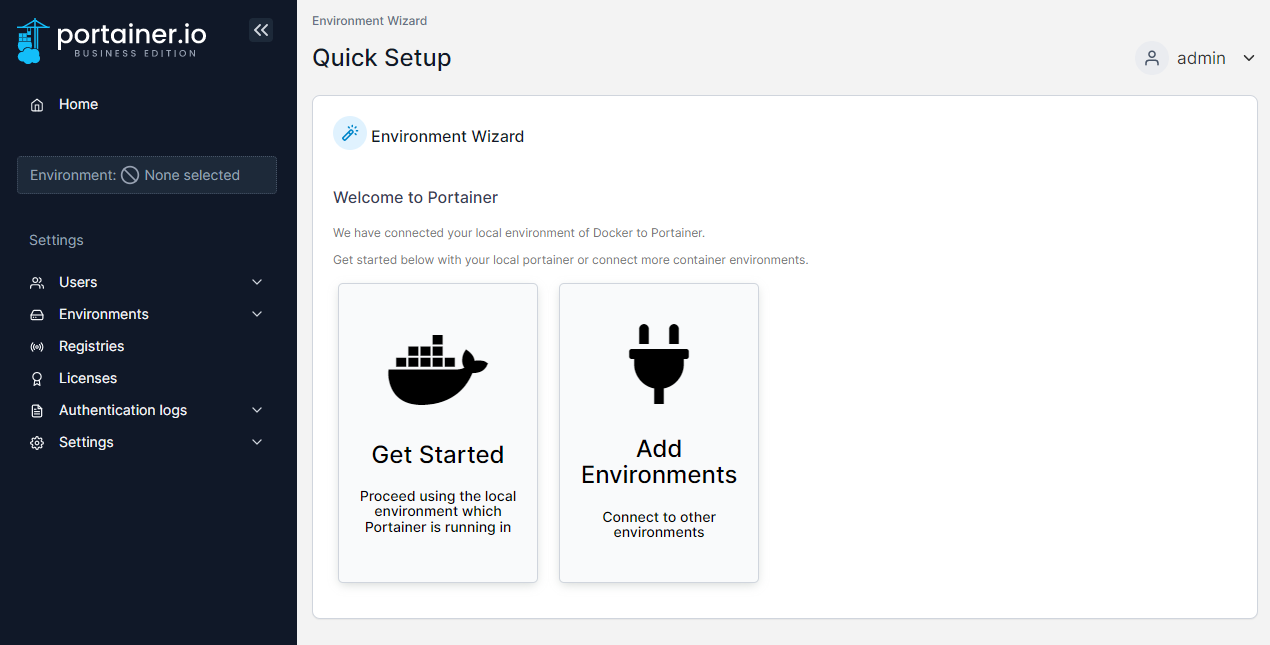
Guides: Subscribers Workshop: Installing Portainer Deployment First, create the volume that Portainer Server will use to store its database: docker volume create portainer_data Then, download and install the Portainer Server container: docker run -d -p 8000:8000 -p 9443:9443 --name portainer --restart=always -v /var/run/docker.sock:/var/run/docker.sock -v portainer_data:/data portainer/portainer-ce:ltsBy default, Portainer generates and uses a self-signed SSL certificate to secure port 9443. P